Finally, we’ve done it | Our own server
Just some server stories..

Published and syndicated from the Inovus Labs engineering publication by Amith Abey Stephen.
Introduction
Before us I haven’t seen a server setup in Inovus. Well, there have been some in the cloud AWS, Oracle, SSD nodes etc., but not a local server. I did try to set it up first since I had an interest in integrating, fixing, physical interaction etc. I’ve tried out many fields like Web dev, designing, automation, hardware, programming and others but the ones that truly peaked my interest are hardware and devops. Yes, I know web maybe interesting to people who are starting to learn since it provides output to your code easily. But don’t get your hopes up for web dev or programming from this.
Do you know “abstract factory singleton adapter decorator proxy” or “Microfrontend-Based Distributed User Interface Architecture” else you don’t know how to code and web dev is a lie.
Just kidding...
Anyways I should get to the story.
Everything is simplified here, the process was long and had many errors.
The Start
We got a first Toshiba Satellite Pro C650.
First Server
Yep, it became our server, the laptop which had an Intel Core 2 Duo T6570 @ 2.101GHz with 2GB of RAM(we’ve upgraded it to 4GB); happy. If you aren’t happy to hear it not my problem, we were happy at that time since we got a machine to ourselves to experiment with and no one to ask for. First question was which software is to be used for our server. There was a bunch of options like simply using server OS with docker and manage and setup every app (or service) or we could use a dashboard to manage it. I’ve seen many videos in youtube about homelabbing and private cloud and found out casaos is good for our use. It is not an OS itself first of all. Its just a web UI for managing apps installed using docker in more user-friendly way. For all the advanced geeks who are going to burst out about casaos about it not being advanced or industry standard wait, we are getting there.
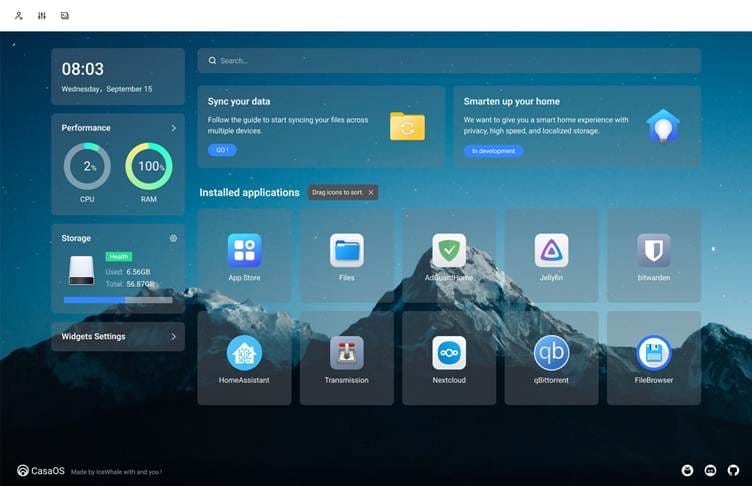
Anyways it has inbuilt file manager, terminal emulator, app store etc. Which makes it easy to add apps.
Here is a comparison among the installation methods of HAOS by chatgpt:
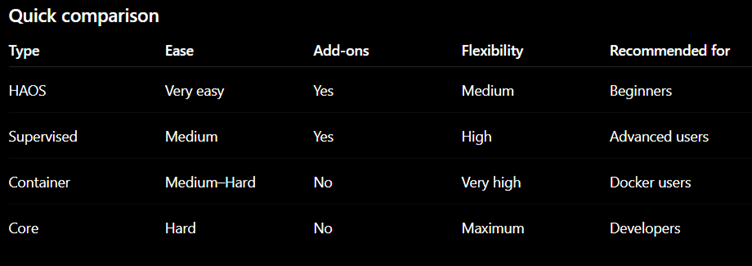
But in supervised method there shouldn’t be any other services installed or it won’t work. First, I decided to install the HAOS supervised. It is like installing in the system but in docker container something like that I don’t understand it. After watching a rare video on youtube with somewhat ok setup I’ve completed it by trial-and-error method. Home assistant is finally up🎉. They won’t allow me to install other things before setting up HAOS but now I will setup any software I want since I didn’t use HAOS directly but ran it supervised in Debian. I’ve installed casaos again. I’ve tested the AI feature and setup pi with Wyoming protocol. I’ve also setup n8n and this started my automation journey.

The Upgrade
No, we didn’t receive a whole server. We got a CPU that has Intel Pentium G3220 @ 3.000GHz (dual core) with 4GB RAM. We got 4GB extra RAM from the one we asked before IYKYK. If you know basic math and computer you would know how much ram we have in our servers. So now we had two system with bare minimum standards according to this time. But with our current situation we couldn’t get a good system for a good price. So, we went with it. We’ve set it up as two servers.

Joel
The Talks That Lead You
Naveen
Naveen

Behind The Scenes

So that’s that.
We needed to access it locally first but the people who have set up local servers or pc for access knows that it can be accessible with the ip or hostname. I can ssh it from my machine, but I can’t ssh the second machine from the first or first from the second. This was frustrating since I can directly access the server with hostname in my machine directly and not each other in the same network. So we researched (I mean used chatgpt) and found out avahi was useful and has mDNS. Whatever and install avahi on both server and it worked. But in local network if I need to access one server from another using hostname I needed to use:
ssh username@hostname.local
Now for worldwide access we used tailscale and added both servers. But for access through hostname we enabled magic dns in dns setting in the admin panel. Now we can access the devices from anywhere if all connections are ok with
ssh username@hostname
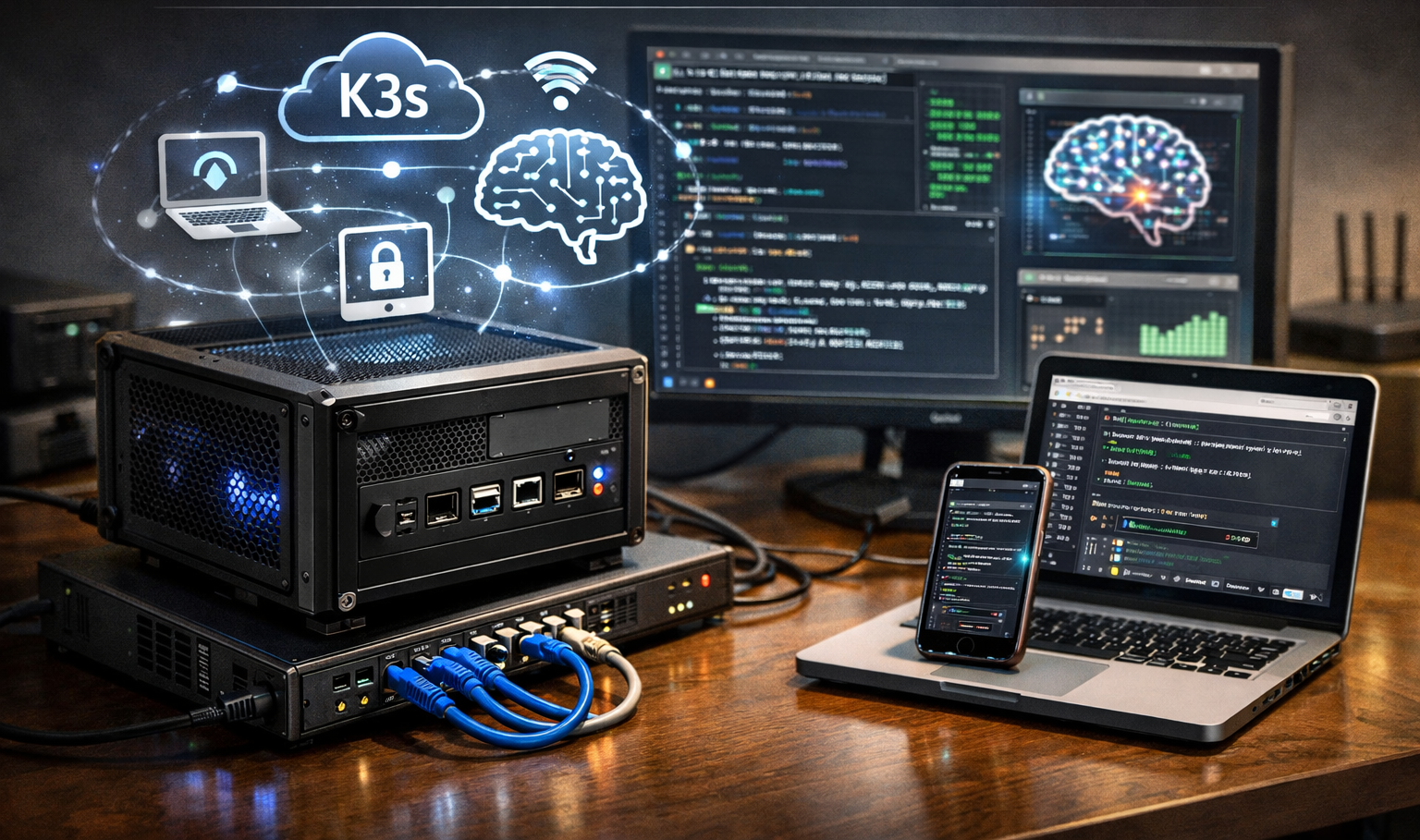
I’ve to set up Kubernetes in the server not because we need it but because we can. No, I just set it up so I can learn it. Our constraint was resources and multi-node support. We also wanted scaling and other Kubernetes features. The best that I’ve found out was k3s. It is used for low-end machines, IoT etc. And we were not building AWS in inovus so we don’t need others. After setting it up I borrowed (stole) the manifest file for nginx pods from someone I ran it and it worked. I chatgpted (if that’s a word) how to increase or decrease the pods (every container or app is run in a pod).
kubectl scale deployment test-nginx --replicas=50 # starts 50 instances of same pod
Admins have to allow you even if you’ve signed up to chat. And, now we’ve connected external AI api so that users can chat with significantly faster models.
Overengineering
“Someone who is very much passionate about tech and know too much tends to overengineer things”


So, we stopped it for the day. The next day I routed the traffic from llm.inovuslabs.org to the worker which has the webui. That day went to inovus and talked about the success and how we can improve it. But don’t dare to run the local model through the UI if you want the answer now. Then we talked about overengineering again.
Conclusion
There is no conclusion its just for the sake of a heading. We are continuing over journey in cloud and other things. We also discussed about setting up multiple pc, android phones as servers. And if you’re thinking can’t we set it up in iphones too…

If you want peace of mind don’t do what we have done.
Enjoyed this reflection?
Read community comments, responses, and join the discussion directly on Inovus Labs.
Discuss on Inovus Labs Blog